
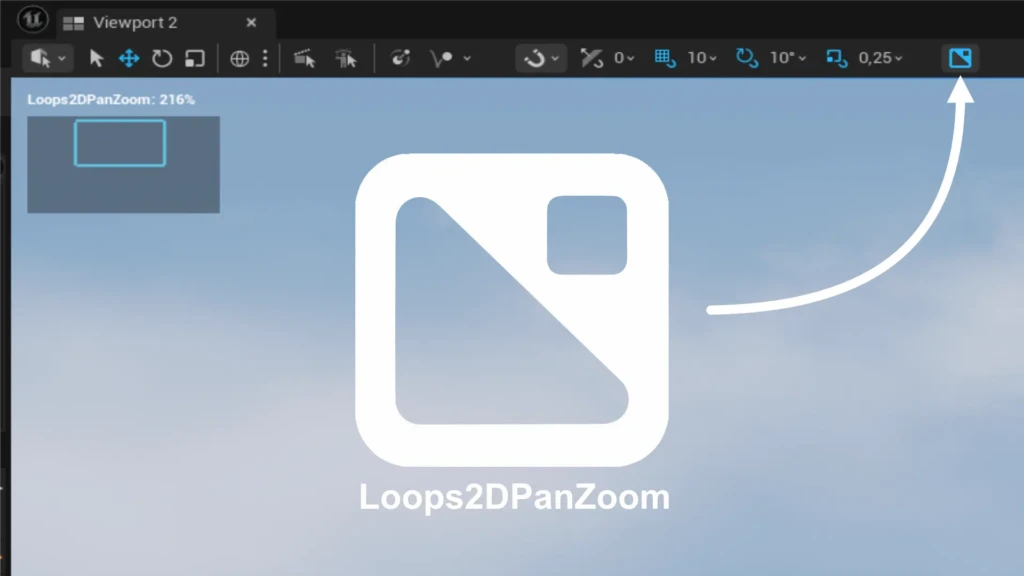
Maya-style 2D Pan/Zoom for the Unreal editor viewport.
OVERVIEW
Loops2DPanZoom drives the viewport’s camera non-destructively to pan/zoom in place, similar to Maya’s 2D Pan/Zoom, keeping selection, gizmos, and Control Rig in sync (at the cost of slight perspective distortion at large values). It can also auto-lock the camera onto the selected Control Rig control and follow sequencer camera cuts.
INSTALLATION
- Copy the
Loops2DPanZoom/folder intoYourProject/Plugins/. - In Unreal, go to Edit > Plugins and make sure « Loops 2D Pan/Zoom » is enabled.

USAGE
Toggle
Click the 2D Pan/Zoom button in the viewport toolbar, or press /. The toolbar button acts on, and gives keyboard focus to, the specific viewport it belongs to, so shortcuts work immediately without needing to click inside the viewport first.
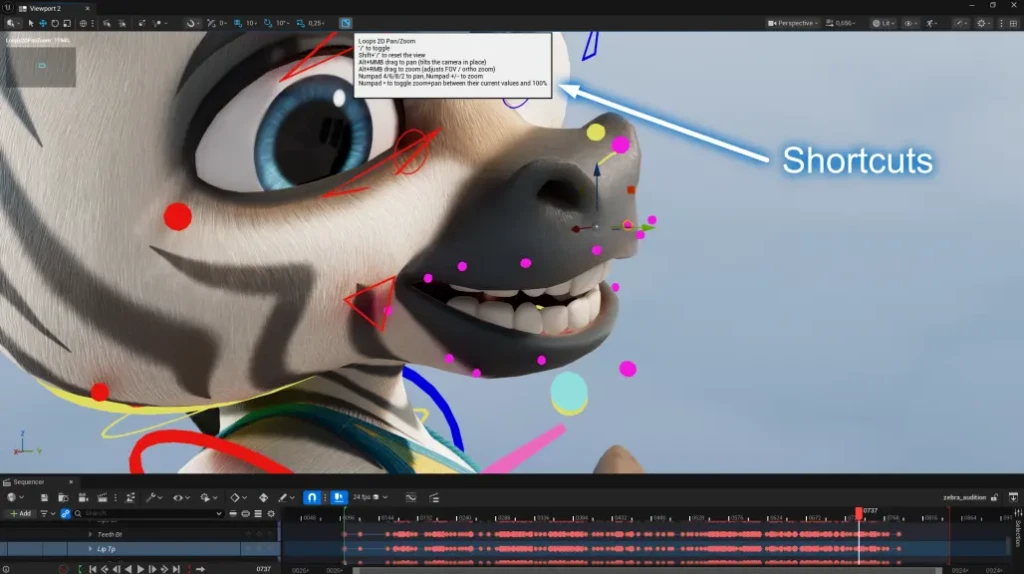
Shortcuts
| / | Toggle 2D Pan/Zoom on the active viewport |
| Shift + / | Reset to 100% zoom, no pan |
| Alt + Middle-Mouse | Pan (tilts the camera in place) |
| Alt + Right-Mouse | Zoom (drag right to zoom in) |
| Numpad 4/6/8/2 | Pan left / right / up / down, one step at a time |
| Numpad + / Numpad - | Zoom in / out, one step at a time |
| Numpad * | Toggle zoom + pan between their current values and 100% |
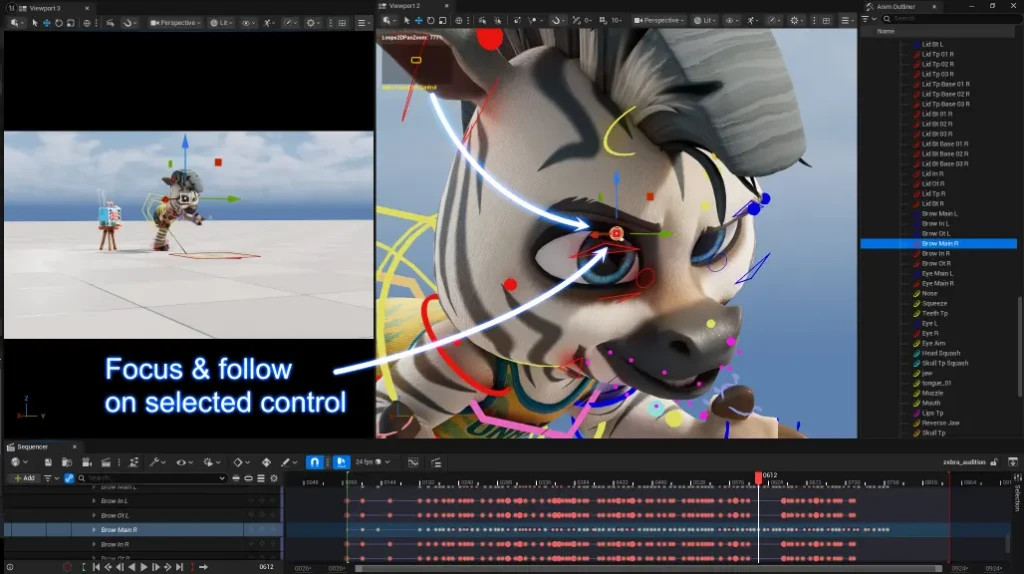
| Numpad . | Lock & Follow the camera to the selected Control Rig control |
All shortcuts work regardless of the active editor mode (Select, Landscape, Rig Editing, etc.), and pan/zoom state is stored independently per viewport, so one panel can stay zoomed in while another shows the normal view.
Live Camera-Cut Following
While enabled, pan/zoom continuously follows whichever camera Sequencer’s Camera Cuts track is currently showing. If you scrub to a different shot, or the shot’s camera moves, the base view updates on its own; the pan/zoom offset simply stays layered on top of it.
- Updates on every playhead move and every camera-cut change, not just once at activation.
- Keeps working even while the viewport is locked to Camera Cuts.
- Falls back to the viewport’s own camera when no Sequencer camera cut is active.
Requirement: the viewport’s « Allow Cinematic Control » option (View Options menu, in the viewport toolbar) must be unchecked for 2D Pan/Zoom to actually drive the camera.
Lock & Follow the camera to the selected Control Rig control
On-Screen HUD
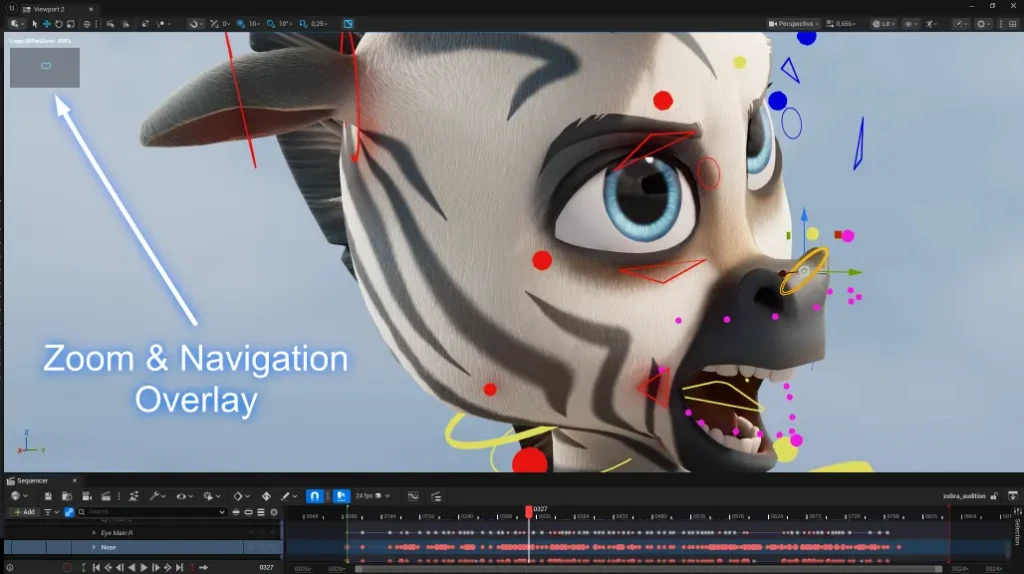
While pan/zoom is active on a Level Editor viewport, a small always-on-top overlay appears in the corner:
- A minimap-style rectangle: an outer frame for the original framing, and an inner one showing where the current crop sits within it.
The crop rectangle is a visual aid, not a precise measurement: it approximates the offset from FOV/ortho zoom and doesn’t account for aspect ratio.
LIMITATIONS
- Not mathematically identical to Maya: zooming via FOV changes perspective compression, and panning via rotation introduces slight edge distortion at large angles. Barely noticeable for moderate use.
- Past Unreal’s FOV floor (5), zoom switches to dollying the camera forward instead of narrowing the FOV further, trading pure parallax-free zoom for extra range.
- Manual camera navigation (WASD, orbit) while pan/zoom is active doesn’t update the base view: disable and re-enable to recapture it from the current position.
FEEBACKS & CONTRIBUTIONS
Github : https://github.com/LoopsCreativeStudio/Loops2dPanZoom